MeTop.ai Free Tools
From AI reconstruction and model viewing to lightweight processing and display output, nine tools are ready to use as needed.
Image to 3D
Video to 3D
3D Model Viewer
Point Cloud Viewer
Key tools
AI reconstruction
JPG / PNG / WebP
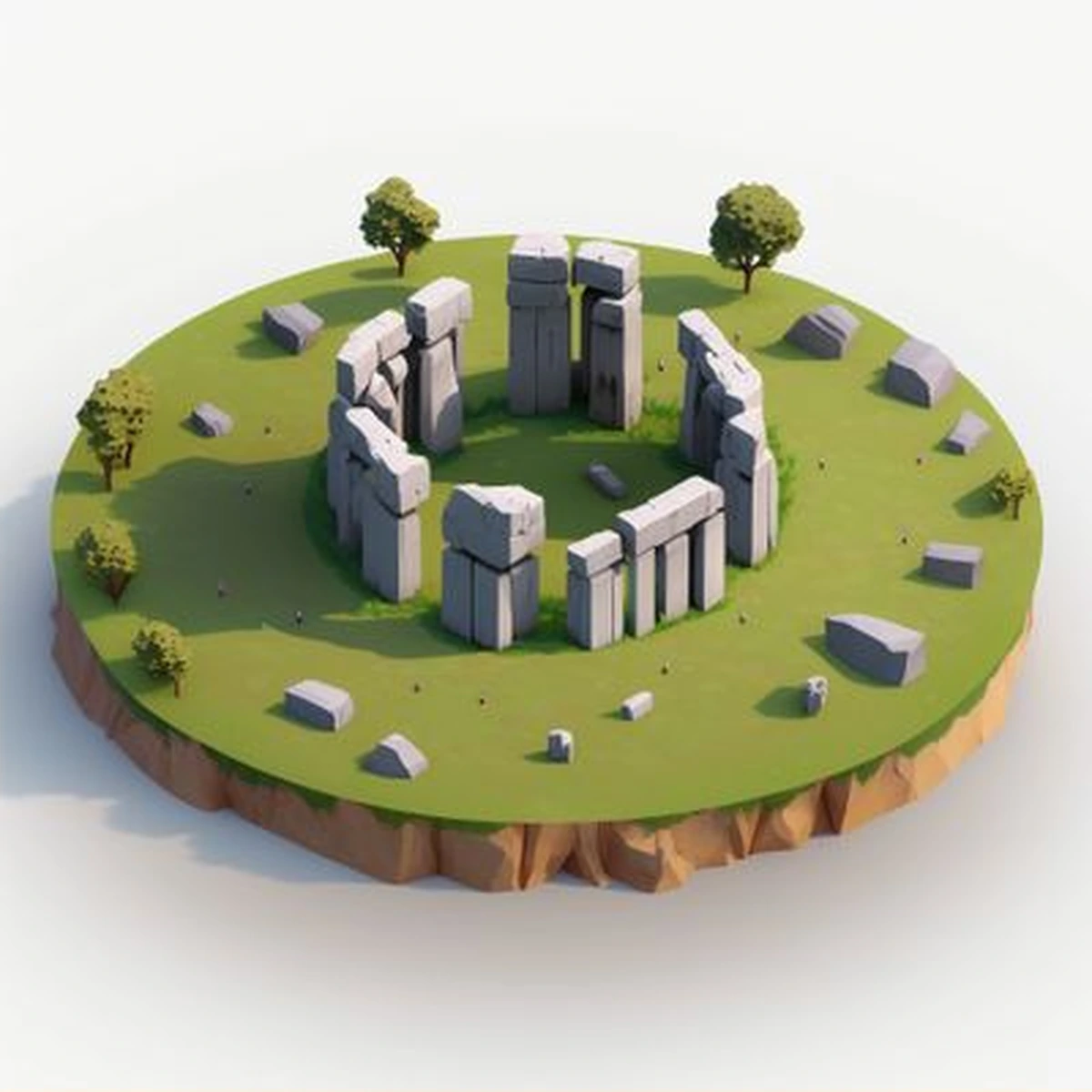
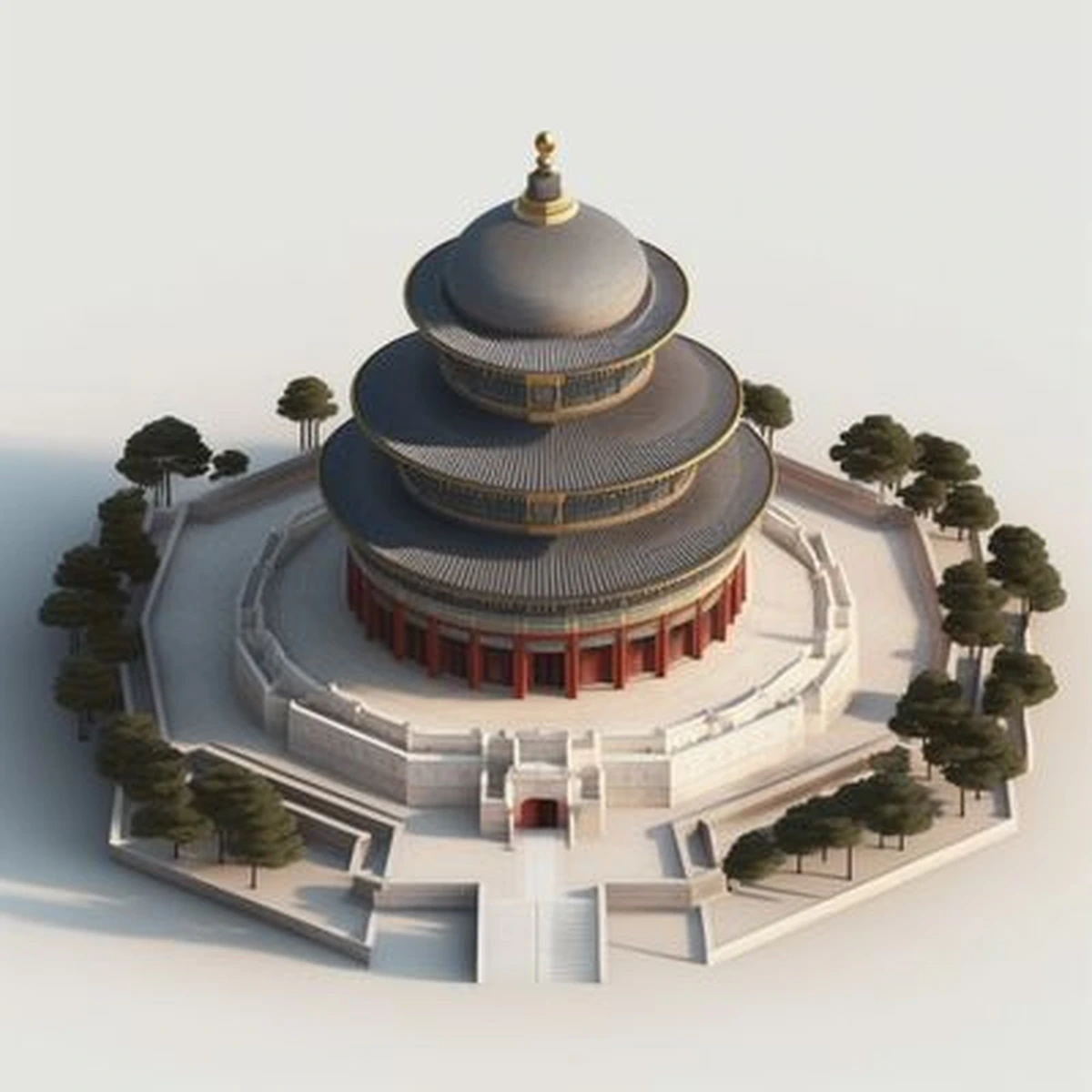
Use single or multiple images to generate displayable 3D product assets for product verification and content production.
MP4 / MOV
Use mobile phones, cameras or drone videos to generate three-dimensional scenes for collection testing and reconstruction effect verification.
Online viewing
GLB / OBJ / FBX / STL
Preview common 3D model formats in the browser to check the model structure, materials and loading effects.
LAS / PLY / XYZ
View point cloud structure, density and spatial information online to assist in checking acquisition and reconstruction results.
All tools
Choose the appropriate tool based on the type of material, output format, and purpose of use.
No need to install professional software, you can rotate, zoom and check the basic information of the model after uploading the file.
Used to view point cloud skeleton, density and spatial relationships, and quickly review the results.
Online measurement
Select measurement points in the browser to quickly check length, area, volume and spatial dimensions.
Model processing
According to the needs of web page display and delivery, the number of model faces, textures and file volume are lightweight.
Upload images of products or objects to create 3D assets that can be rotated and viewed and used for image and video content production.
Upload continuously shot video materials to complete scene reconstruction and view spatial structure, coverage and three-dimensional effects.
Product materials
After uploading the product image, separate the main body and background, and output transparent background or solid color background material.
show output
Adjust the model perspective, background, and screen ratio, and save high-definition screenshots for presentation and communication.
Usage
01
Select reconstruction, viewing, measurement or processing tools based on image, video, model or point cloud type.
02
Follow the prompts on the tool page to prepare supported materials and file formats; follow the instructions to download and install local tools.
03
Complete 3D generation, results viewing, lightweight processing, measurement or display image output.
There are already common 3D models or point cloud files, and you can directly select the corresponding tools.